
# Output Api Authentification
SSM provides an API for delivery companies in order to make a bridge between SSM and delivery companies, in this guide we'll walk through the process of creating that bridge.
# 1. Get API credentials
The first step is to get client id and a client secret. These API credentials identify your app during the authorization process. In order to get these please contact the support team. they will ask for your redirect uri we'll see what we mean by that in a moment.
# 2. Ask for permission
Before an app can access any store data, a merchant must grant permission to the app. Granting permission happens when a merchant clicks the link to install your app.
# How the installation flow works
After a merchant clicks the link to install your app, your app receives a GET request in your redirect uri that you provides to the support team already.
# Installation permissions prompt
SSM shows the following prompt to receive authorization from the merchant.
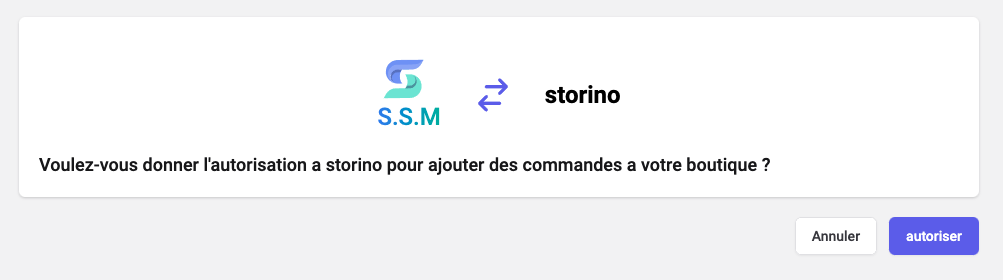
Show the installation permissions prompt To show the prompt, redirect the merchant to the following URL with the query parameters defined below:
https://platform.supersalesmanagerapp.com/#/portail/oauth/delivery-companies?client_id={api_key}&redirect_uri={redirect_uri}
| Query parameter | Description |
|---|---|
| {api_key} | The API key for the app. |
| {redirect_uri} | The URL to which a merchant is redirected after authorizing the app. The complete URL specified here must be added to your app as an allowed redirection URL. |
# 3. Confirm installation
When the merchant clicks the install button in the prompt, they’re redirected to your app's server. The authorization_code is passed in the confirmation redirect:
https://delivery-company-site.org/some/redirect/uri?code={authorization_code}&hmac=da9d83c171400a41f8db91a950508985}
# 4. Get a permanent access token
If all security checks pass, then you can exchange the access code for a permanent access token by sending a request to the shop’s access_token endpoint:
POST https://api.supersalesmanagerapp.com/api/oauth/delivery-companies/token
In your request, you must provide in the request body:
| Parameter | Description |
|---|---|
| client_id | The API key for the app, as defined in the Partner Dashboard. |
| client_secret | The API secret key for the app. |
| code | The authorization code provided in the redirect. |
The server responds with an access token:
{
  "access_token": "f85632530bf277ec9ac6f649fc327f17",
  "email": "storeowner@email.com"
}
The following values are returned:
| Value | Description |
|---|---|
| access_token | An API access token that can be used to access the shop’s data as long as your app is installed. Your app should store the token somewhere to make authenticated requests for a shop’s data. |
| the store owner email in order to identify the token belongs to who. |
# 5. Make authenticated requests
After your app has obtained an API access token, it can make authenticated requests to the SSM API. These requests a Bearer token like this: Bearer {access_token} where {access_token}is replaced with the permanent token.